
Appearance
Patient Statements
The monthly statement run. Administration → Patient Statements closes the billing cycle, works out what each patient owes and what is past due, and prints the statements and reminder notices. It needs the billing edition.
The screen has three tabs, worked left to right:
- Billing Cycle — review the last cycle and close the current one.
- Registry — choose which patients get a statement.
- Printing — choose the form and print.
The Order Patient Statement Forms button at the top links to the supplier of the pre-printed forms.
The recommended rhythm
Create statements on the 20th of each month and set the due date to the 5th of the next. Whatever dates you choose, keep them the same every month — patients learn when to expect the statement.
Billing Cycle
The top of the tab shows the last cycle: its From and Through dates and the Due Date that was set. Below it, the settings for closing the current cycle:
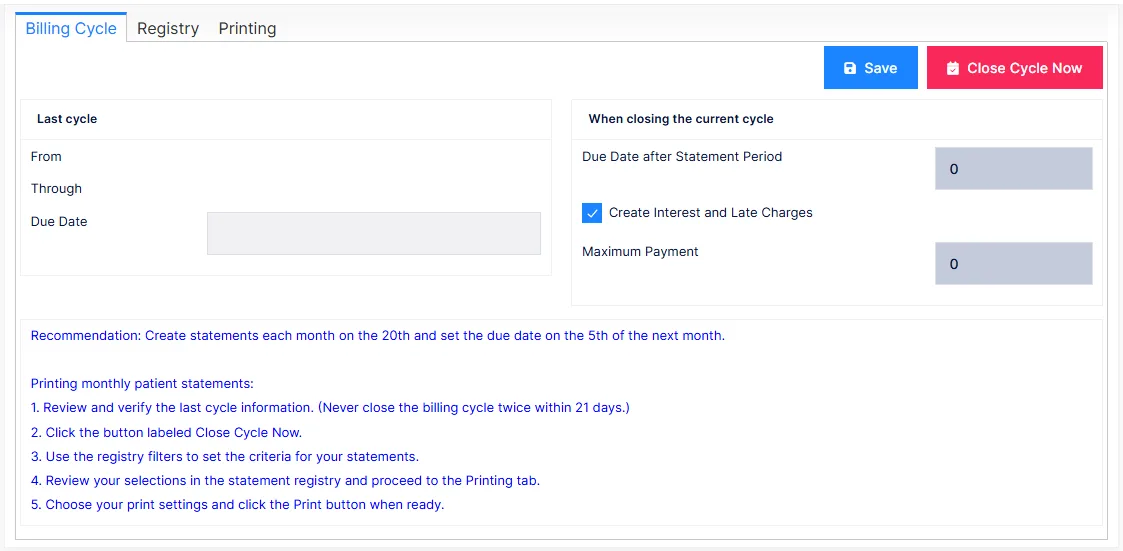
| Setting | Effect |
|---|---|
| Due Date after Statement Period | How many days after the close the payment is due. The due date is printed on every statement |
| Create Interest and Late Charges | When ticked, patients whose account carries a late-charge agreement have the interest or flat charge added to their balance at close |
| Maximum Payment | Caps the minimum payment shown on any statement |
Save stores the settings; Close Cycle Now runs the close.
What closing does
Closing freezes each patient's balance as of the close date, moves anything unpaid from the previous statement to past due, sets the new due date, and applies the late charges if enabled. It is the event the Registry and the statements are built from.
Never close twice within 21 days
A second close inside the cycle treats the balances just billed as already past due. ChiroPad refuses a close within 21 days of the last one, and warns below 27. If you have closed by mistake, stop and call support before printing anything.
Late charges need the patient's signed agreement
Under federal regulations, interest or late fees can be charged only where the patient was told in advance that this is the practice's policy and the practice can prove it — a signed statement in the patient's file. The setting here only applies the charge to patients whose Patient Info financial tab records the agreement; do not record an agreement you cannot produce.
Registry
Every patient with something to bill after the close, one row each. Filter the list with Chart, Patient, Account Type, a minimum balance and Only past due, then Search; or click SmartSelect to build any query on patient fields, exactly as on the Patient Master List. Clear all removes the query.
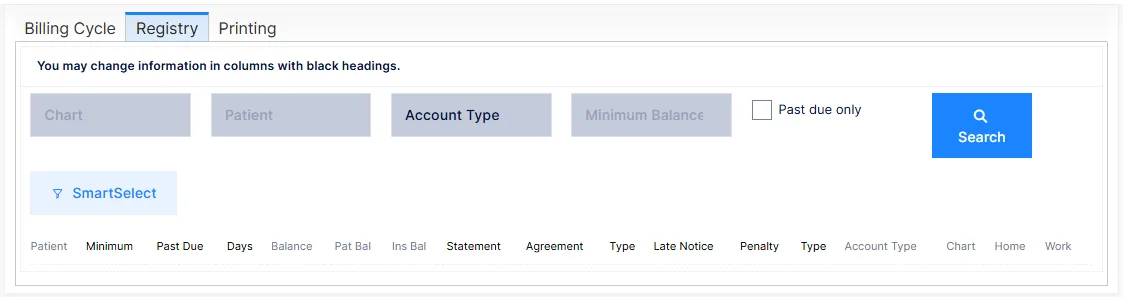
| Column | Shows |
|---|---|
| Patient, Chart, Account Type, Home Phone, Work Phone | Who |
| Balance, Patient Balance, Insurance Balance | What is owed, and by whom |
| Minimum Payment | The amount the statement asks for |
| Past Due, Days Late | What was on the last statement and is still unpaid, and for how long |
| Statement | Whether this patient receives statements: Always, Never, or only when there is an amount due — from their Patient Info |
| Payment Agreement, Type | Whether a payment plan is on file and its kind |
| Late Notice, Penalty, Type | Whether a reminder notice goes out, and the late charge that applies |
Columns with black headings can be edited in the grid — adjust a minimum payment or switch a patient's late notice off for this run without changing their record.
Printing
Choose what to print, tick With Template to use the practice's statement template, and click Print. Save stores the print settings for next month.
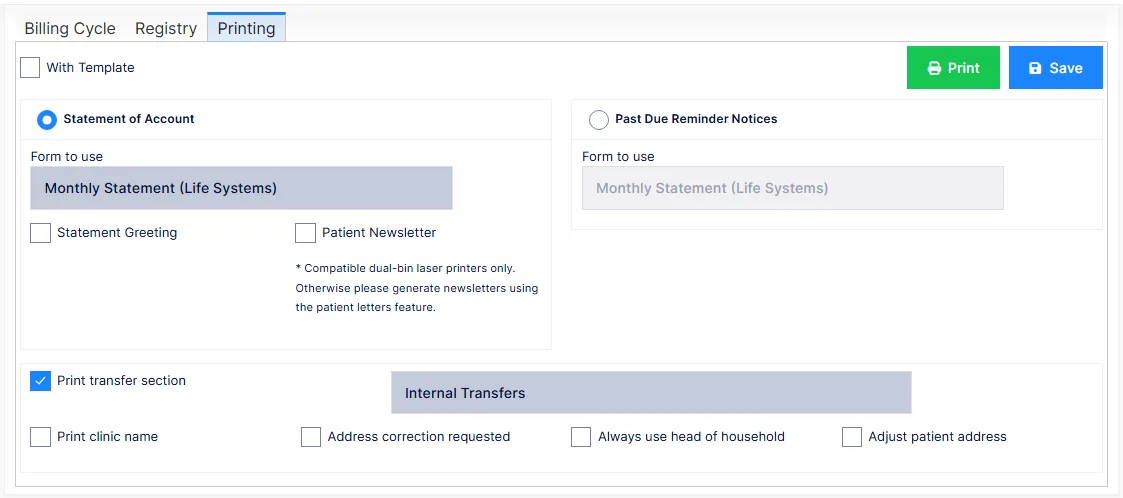
| Choice | Prints |
|---|---|
| Statement of Account | The monthly statement, on the form chosen. Options: add the Statement Greeting, and enclose the Patient Newsletter (dual-bin laser printers only; otherwise produce newsletters as patient letters) |
| Past Due Reminder Notices | The reminder for past-due accounts, on its own form. Option: Print transfer section with a caption |
Options that apply to both:
| Option | Effect |
|---|---|
| Print clinic name | The clinic's name rather than the doctor's as the payee |
| Address correction requested | Prints the USPS "Address Correction Requested" line in the return address, so the post office reports moves |
| Always use head of household | Address the statement to the head of household recorded on the patient |
| Adjust patient address | Reposition the address block for the window envelope in use |
Print the registry first
Before the statement run, export the Registry (the download control above the grid). It is your record of exactly who was billed what, and it is what you will reconcile payments against.