
Appearance
Front Desk
The Front Desk is where the practice's day runs. It is the first screen you see after signing in, and every patient operation starts here — finding patients, signing them in when they arrive, opening their file, and checking them out when they leave.
Before you start
The Front Desk relies on data set up elsewhere. If it looks empty or incomplete, check that:
- Users have been created, each with their own sign-in (Getting Started)
- Master Catalogs have been populated — especially Providers and Account Types
- Appointment templates define your provider schedules
- Patients have been entered
The screen at a glance
The Front Desk has three areas, top to bottom:
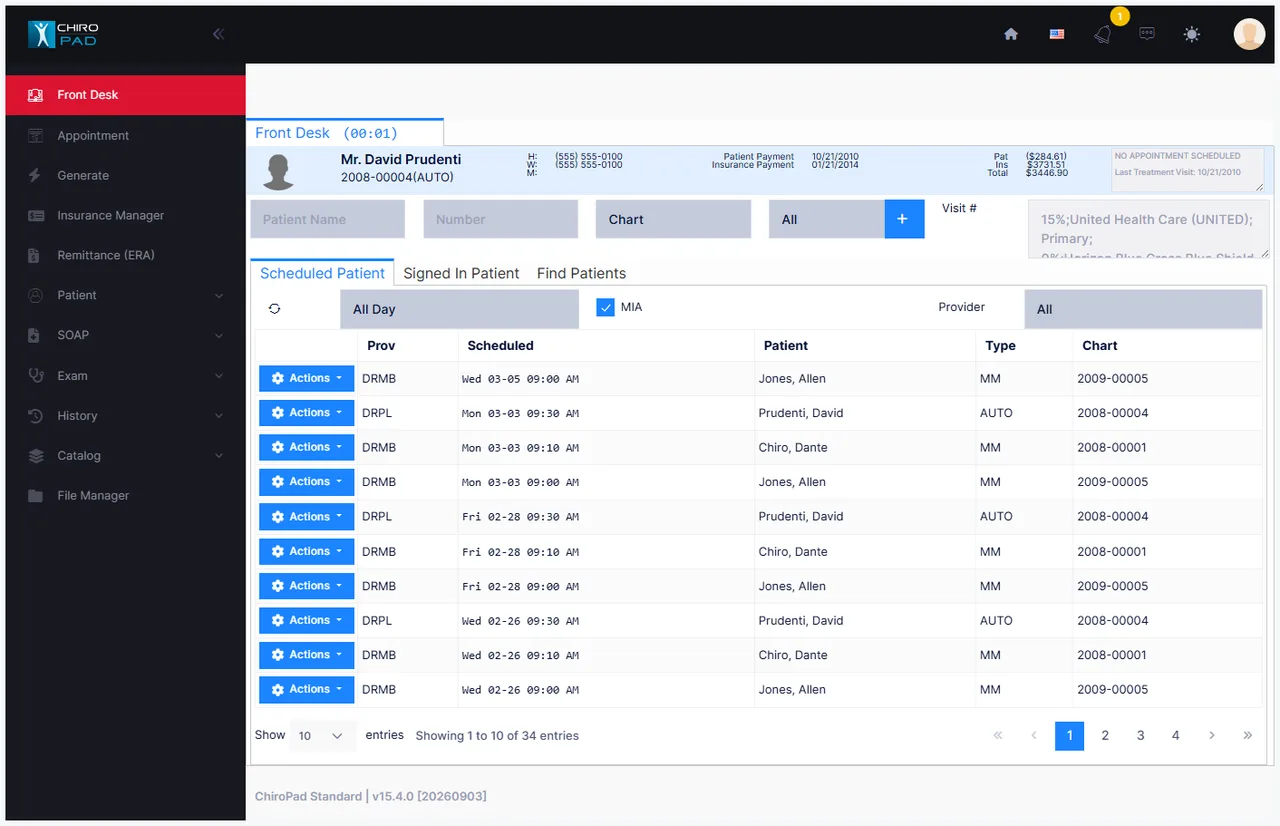
| Area | What it does |
|---|---|
| Patient header | Details of the patient you currently have open. Empty until you open someone. |
| Search bar | Find patients by name or number, filter by status, and add a new patient. |
| Patient tabs | Scheduled Patient, Signed In Patient, and Find Patients — the three working lists. |
The three tabs
| Tab | Who's listed |
|---|---|
| Scheduled Patient | Patients with an appointment today. Optionally also missed appointments — see Missed appointments. |
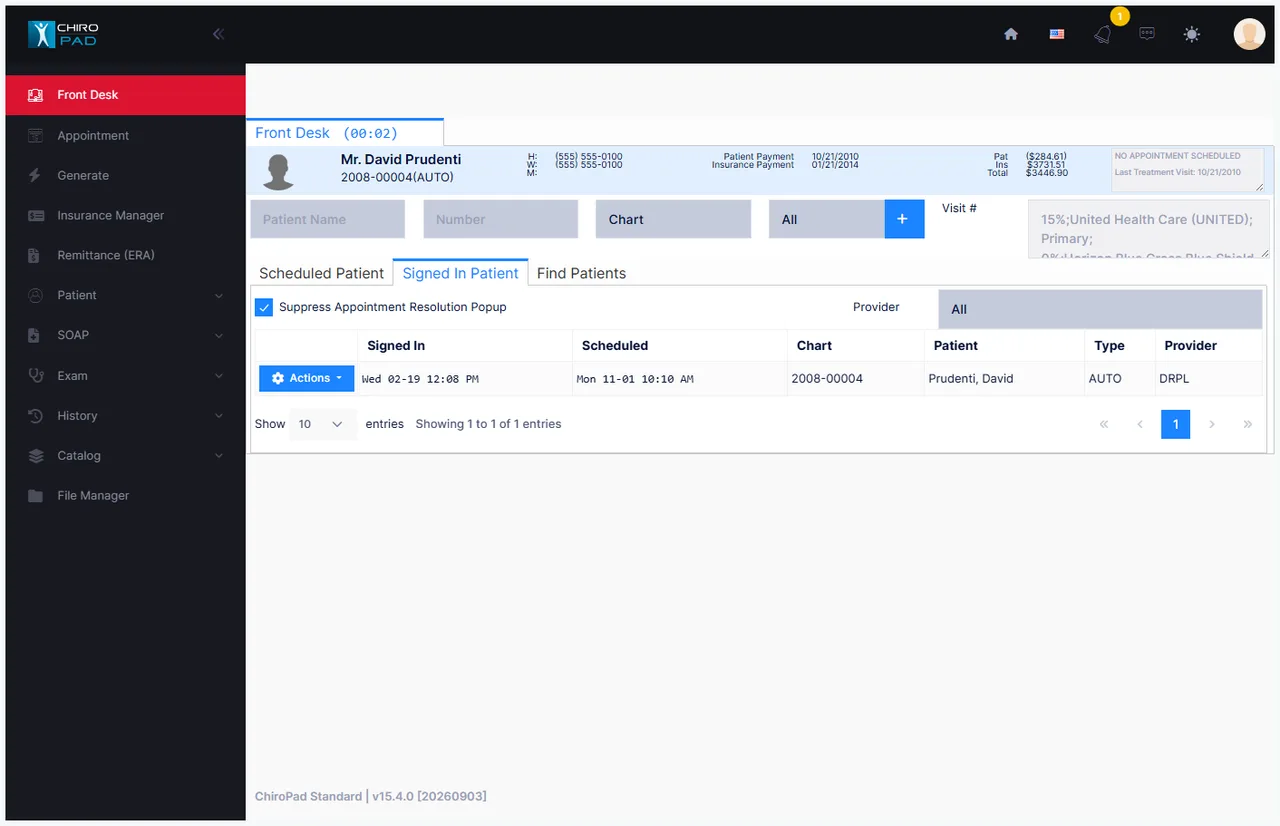
| Signed In Patient | Patients physically present in the office right now. |
| Find Patients | Results of a name or number search. |
A patient normally moves left to right across these tabs through the day: they appear on Scheduled Patient, move to Signed In Patient when they arrive, and drop off when you check them out.
Walk-ins skip the first tab
A patient without an appointment never appears on Scheduled Patient. You find them on Find Patients and sign them in from there. See Signing patients in.
Working with a row
Every row on every tab has an Actions menu (the gear icon in the first column). This is how you act on a patient — sign in, open, check out, and so on. The available actions differ by tab:
| Tab | Actions available |
|---|---|
| Scheduled Patient | Sign In · Open Patient · Send Email |
| Signed In Patient | Check Out · Open Patient · Refresh · Appointment History · Remove from sign in · Send Email |
| Missed appointments (MIA) | Sign In · Open Patient · Refresh · Resolve appointment / view log · Appointment History · Close potential patient appointment · Send Email |
You can also double-click a row to open that patient's file.
The patient header
Once you open a patient, the header across the top of the Front Desk stays populated with that patient's key details, so the information you need most is always in view:

| Field | Shows |
|---|---|
| Name, Chart and Type | Who the patient is, their chart number and account type |
| H / W / M | Home, work and mobile phone numbers |
| Patient Payment | Date of the last payment made by the patient |
| Insurance Payment | Date of the last payment received from insurance |
| Pat / Ins / Total | Patient balance, insurance balance, and the two combined |
| Notes box | Amount currently due, next appointment, birthday notice, and last visit date |
| Copay : Active Insurance Carrier | The patient's active carriers and the copay each requires |
Birthday reminders
When a patient's birthday falls within the next two weeks, a notice appears in the header notes box — a natural opening for staff at check-in or check-out.
The Visit # counter beside the search bar shows the visit number for the open patient.