
Appearance
File Manager
Your practice's document store — everything ChiroPad has generated or you have uploaded, in one place. It is scoped to your practice; there is no way to browse out of it.
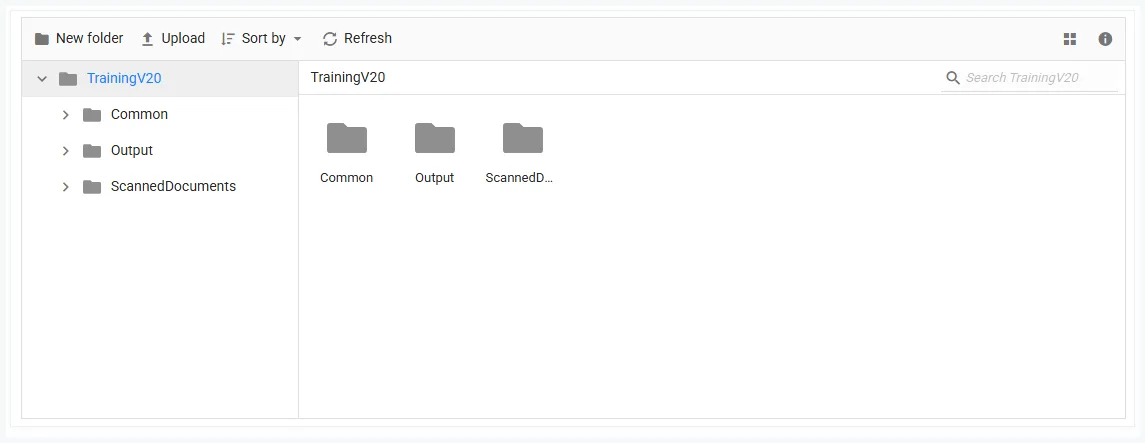
The folders
| Folder | Holds |
|---|---|
| Common | Shared templates and documents the whole practice uses — the claim-attachment template, letterheads, form templates |
| Output | What ChiroPad produces — claim files, print images, generated attachments |
| ScannedDocuments | One folder per patient chart, holding whatever has been scanned or uploaded to that patient |
The patient folders are the same files as the Scanned Documents tab
A patient's ScannedDocuments folder here and the Scanned Documents tab on their Patient Info are two views of one store. Upload, rename or edit in either and the other sees it.
Working with files
The toolbar gives you New folder, Upload, Sort by, Refresh, a View switch between icons and a details list, and a Details pane for the selected item.
Opening a file
Double-click, and what happens depends on the type:
| Type | Opens |
|---|---|
| In a viewer, with Print and Download | |
| Word documents (.docx, .rtf, .doc, .txt) | In an editor, in place |
| Anything else | Downloads |
You can edit templates without leaving ChiroPad
Open a letter template or the claim-attachment template from Common, change it, and Save. The file is written back in its original format, so a .rtf stays .rtf. Save As puts a copy in the same folder under a new name.
Depending on where your files are hosted, some may download instead
In-place viewing and editing work on locally stored files. If your practice's documents are held in cloud storage, a file may download for you to open outside ChiroPad rather than opening in the viewer.
Where generated documents land
When ChiroPad writes something for you — a claim file to send to a clearing house, a print image, a SOAP-note attachment for a paper claim — it goes into Output. If you are looking for a file you asked ChiroPad to produce, start there.