
Appearance
Finding and opening patients
The search bar at the top of the Front Desk finds patients two ways: by name or by number. Results appear on the Find Patients tab.
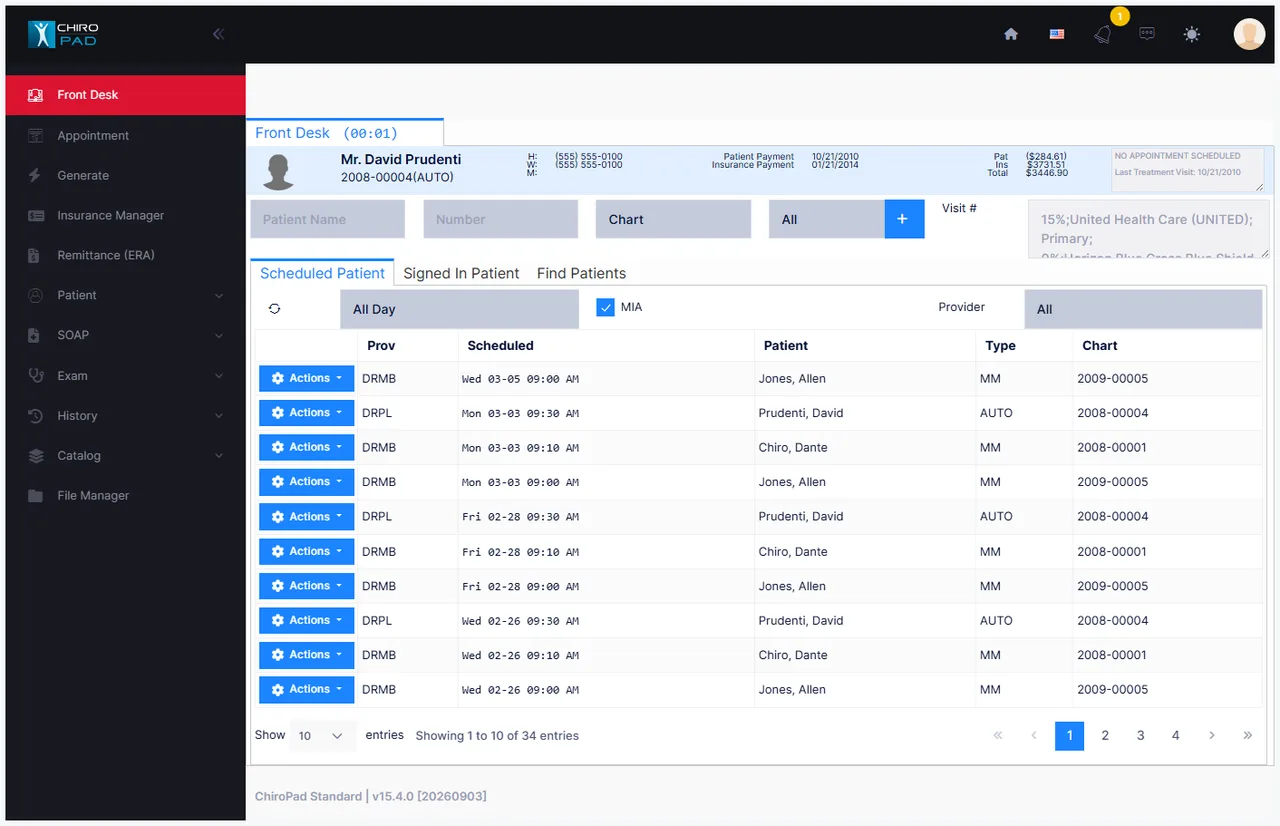
Search runs automatically as you type — there is no button to press and no Enter key required. Results refresh a moment after you stop typing.
Search by name
Type any part of the start of a patient's name into the Patient Name field.
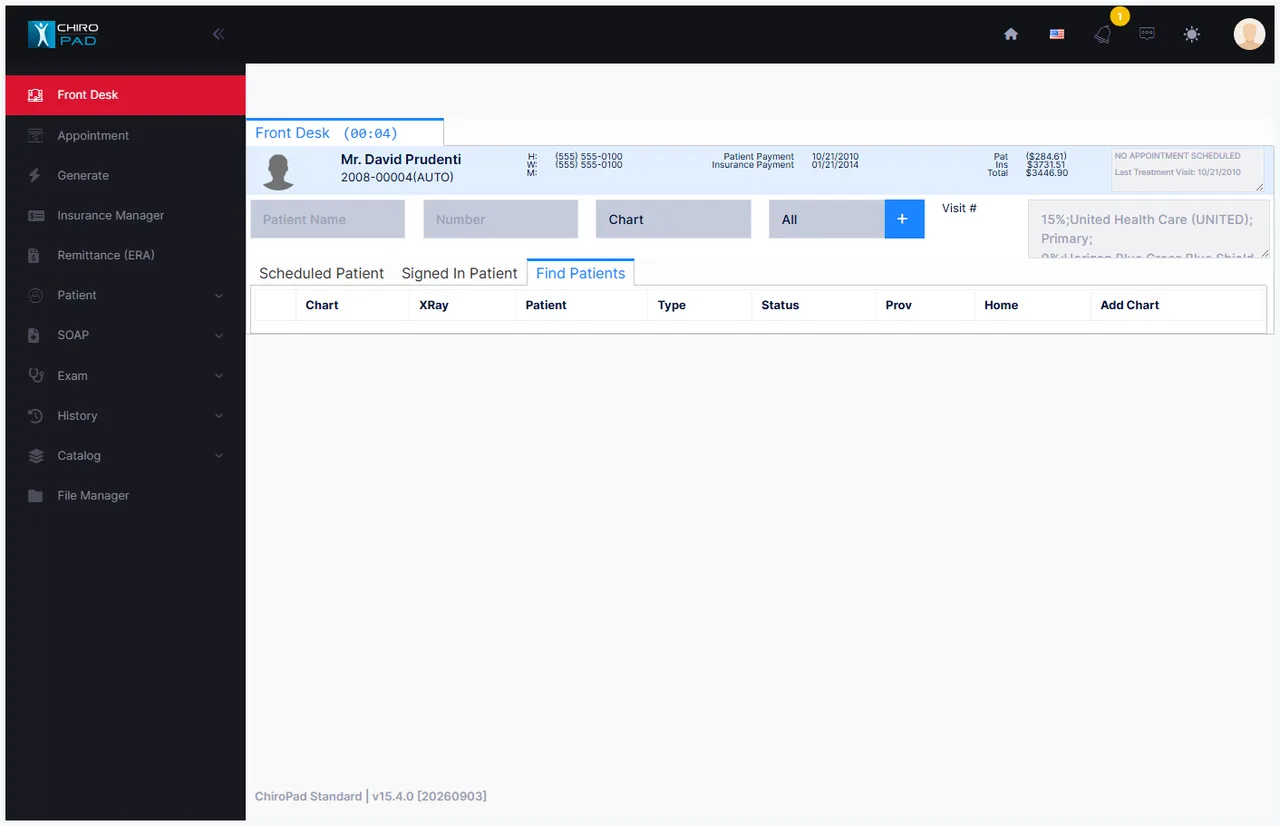
ChiroPad matches what you type against the beginning of the patient's first name, last name, title, middle initial, or suffix, and lists everyone who matches.
| You type | You get |
|---|---|
smi | Everyone whose first or last name starts with "smi" — Smith, Smiley, Smita |
john | Johnson, Johns, and anyone with the first name John |
Name search matches the start of a name
Searching smith finds Smith but not Blacksmith — matching starts at the beginning of the name. Wildcards such as * are not supported, and you cannot combine a first and last name in one search (for example smith/john). Type the shortest distinct part of either name instead.
Search by number
Type the number into the Number field, then choose what kind of number it is from the Type list beside it:
| Type | Searches |
|---|---|
| Chart | The patient's chart number (the default) |
| Add Chart | The additional chart number |
| XRay | The X-ray number |
| Phone | The home phone number |
As with names, number search matches from the beginning of the value. Searching chart 23 finds 23095 and 2350-17404, but not 1999-00023. Enter the leading digits, not a fragment from the middle.
The number has to be on file
Add Chart, XRay and Phone searches only work if that value was entered on the patient's record. If a search comes up empty, check the patient's information screen first.
Narrow the list by status
The Status list filters results to a single patient status — Active, Inactive, PRN, New Patient, Dismissed, Deceased, or Delete. Leave it on All unless you are deliberately looking for a subset.
This is useful for questions like "which patients are marked New Patient?" without building a report.
Opening a patient
From any tab, either:
- Double-click the patient's row, or
- Open the row's Actions menu and choose Open Patient
The patient opens in their own tab alongside the Front Desk, and the patient header fills in with their details.
Working with several patients at once
Each patient you open gets their own tab, so you can have more than one patient open and switch between them by clicking their tabs — useful when you are interrupted mid-task.
To close a patient, double-click the patient photo in the header.
Open ≠ signed in
Opening a patient's file does not sign them in. This matters: you will often open a file for someone who is not in the office — posting an insurance payment, answering a billing question, checking a note. Open the file, do the work, close it, and the patient never appears on the Signed In Patient tab.
Only sign in patients who are physically present, so that tab stays an accurate picture of who is in the office.
Adding a new patient
The + button beside the Status list opens a blank patient record. See the Patient Information chapter for what to enter.