
Appearance
Booking an appointment
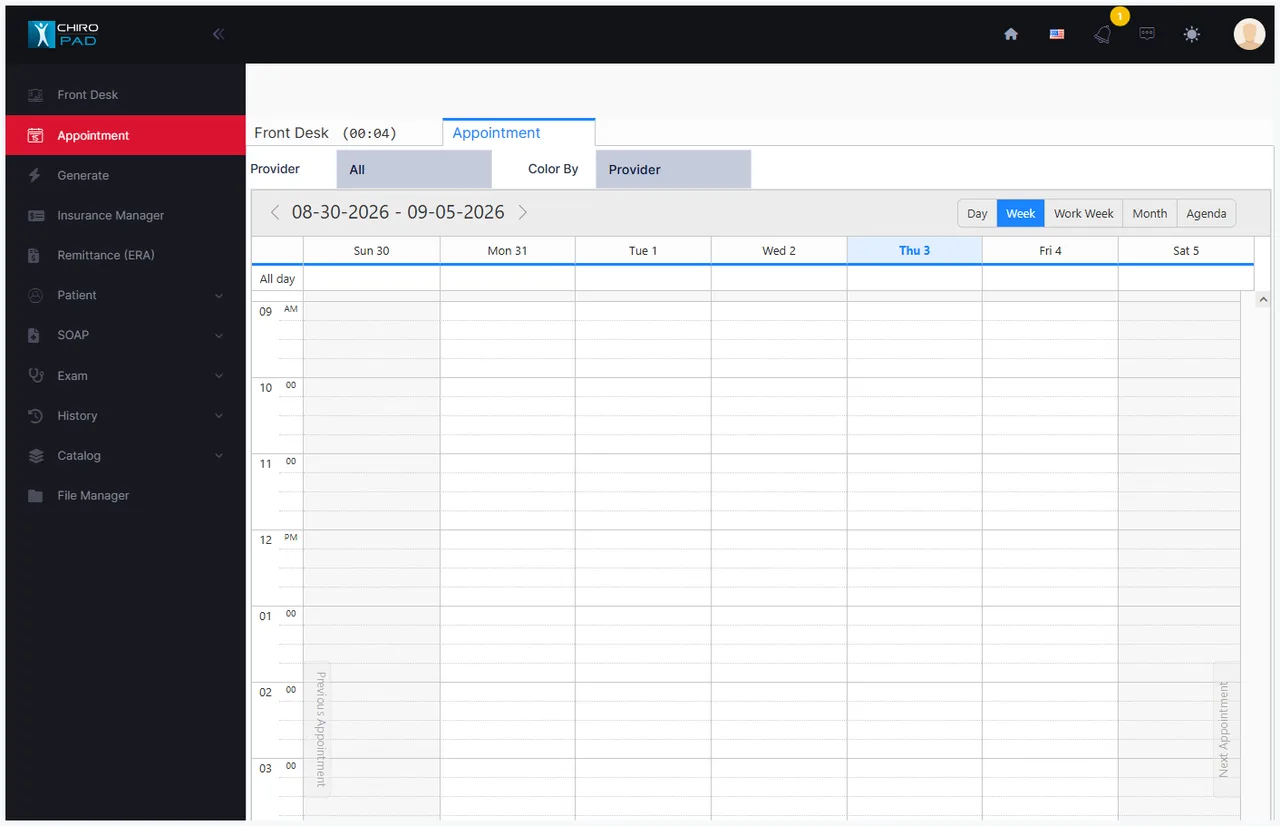
Right-click the slot you want and choose Schedule Patient — or Schedule [name] when the patient is already open. Find the patient by name or chart number, select them, and the appointment form opens, headed with their name.
The appointment form
| Field | What it does |
|---|---|
| Provider | Who the patient is seeing. Required |
| Slots | How long the appointment is, in 15-minute units |
| Start Time / End Time | Defaulted from the slot you clicked; both editable |
| Remark | The reason for the visit, chosen from the procedure list |
| Display Plan | Which plan source fills the grid below |
| Plan grid | The services expected at this visit |
| Recurrence | Turns a single appointment into a repeating series |
Slots are 15 minutes each, not template slots
1 slot = 15 minutes. A 45-minute new-patient visit is 3, an hour is 4. Changing Slots and changing End Time are the same edit made two ways; whichever you set last wins.
Provider is required, and nothing warns you twice
An appointment saved without a provider cannot be shown in a provider column or found from the Front Desk. ChiroPad refuses to save one — but the message is easy to click past, so check the provider is set before you save.
Remark
Remark is a drop-down of your procedure list, not free text — it records what the visit is for, and appears on the appointment block in the calendar. Pick the closest procedure; the detail belongs in the Plan grid.
Display Plan and the Plan grid
The Plan grid holds the services expected at the visit — up to eight lines, each with a Status of Active or Inactive, and its procedures and slot count alongside.
Display Plan chooses where those lines are loaded from:
| Source | Pulls from |
|---|---|
| Front Desk Wizard | What was booked on the patient's previous appointment |
| ChiroOffice Plan | The patient's active plan list |
| ChiroPad Plan | The therapies on the provider's most recent progress note |
Staff can override any line after it loads.
This is what makes billing match documentation
If the plan on the appointment differs from the provider's most recent progress note, ChiroPad asks which you want to use when the form opens. Answering Yes adopts the note.
Driving charges from the clinical note is what guarantees the billing and the SOAP note tell the same story — which is exactly what an auditor checks. (The prompt can be silenced with Do not show this message, and once silenced it behaves as though you always answered No.)
Visit frequency
The recommended visit frequency — twice a week for four weeks, and so on — is the doctor's, recorded on the Treatment Plan. It is not shown on this form, so have the treatment plan in front of you when booking a course of care.
Recording visit frequency is a documentation requirement
Stating when or how often the patient should be seen is required by state boards, the federal government and many insurance programs. It belongs on the treatment plan, not only in the scheduler.
Medicare expects a re-examination every 30 days
For patients under active treatment, Medicare requires re-evaluation at least every 30 days, including a Functional Outcome Assessment. Get that re-exam onto the calendar before the window closes — the DX and Plan Visitometers on Generate tell you how close it is.
Booking a course of treatment
Tick Recurrence to book a series rather than one visit. The recurrence editor opens:
| Field | Sets |
|---|---|
| Repeat | Daily, Weekly, Monthly, Yearly, or Every weekday |
| Every | The interval — every 1 week, every 2 weeks, and so on |
| Repeat on | Which days of the week (weekly patterns) |
| Starts on | When the series begins |
| Ends | Never, After a number of occurrences, or On a date |
Click Ok to accept the pattern, then Save the appointment.
Match the series to the treatment plan: three times a week for four weeks is Weekly, repeating on Mon/Wed/Fri, ending after 12 occurrences.
"Ends: Never" is the default
Left alone, the series has no end date and keeps generating appointments indefinitely. Always set After a number of occurrences or On a date — a course of care has an end, and an endless series has to be cleaned up by hand.
A recurring series books the same time on every date
All occurrences land at the same time of day, and the series fills those slots whether or not they are free — nothing checks. Review the result and move individual appointments where the time doesn't suit.
Give the patient the list
The Transactions screen has a Future Appointments button that prints the patient's scheduled visits. Patients who leave holding their appointment list miss noticeably fewer of them.
Changing one visit in a series
Editing an appointment that belongs to a series asks what the change applies to:
| Choice | Applies to |
|---|---|
| Only This Occurrence | This visit alone; the rest of the series is untouched |
| Future Appointment | This visit and every later one in the series |
| Delete Future Appointment | Removes this visit and all later ones |
Prospective patients
Schedule Potential Patient books someone who has called but has never attended. You need only their Name, Phone and optionally Email and a remark — no patient record is created, and the appointment is marked Potential Patient.
They become a real patient when they arrive for the first time.
Prospective patients who never arrive are a marketing list
Keeping them distinct from real patients means you can find the people who were interested enough to book but never came. A follow-up call converts a useful share of them, and none of that is visible if they were entered as ordinary patients.
Blocking time out
Blackout Selected Range marks time as unavailable — meetings, lunch, holidays, or a provider's day off. Select the range on the calendar first; the dialog confirms the From and Through times and takes a remark.
Blackout blocks always render black, whatever Color By is set to. To release the time again, right-click the block and choose Reactivate Blackout Range.
Blackout needs a provider selected
Blacking out time with the provider filter on All does nothing. Choose the provider whose time you are blocking first.
Which provider
The appointment can be booked to a provider other than the patient's usual one — covering a day off, or seeing a therapist rather than the doctor.
This can affect billing
Whether the charge is attributed to the provider who was scheduled or to the patient's assigned provider depends on a practice-wide setting. If income attribution between providers matters to you, confirm which behaviour is configured before relying on it.