
Appearance
Display options and filters
The Front Desk shows the same shared data to everyone, but each person can control how much of it they see. A provider's screen and the front desk's screen usually shouldn't look the same.
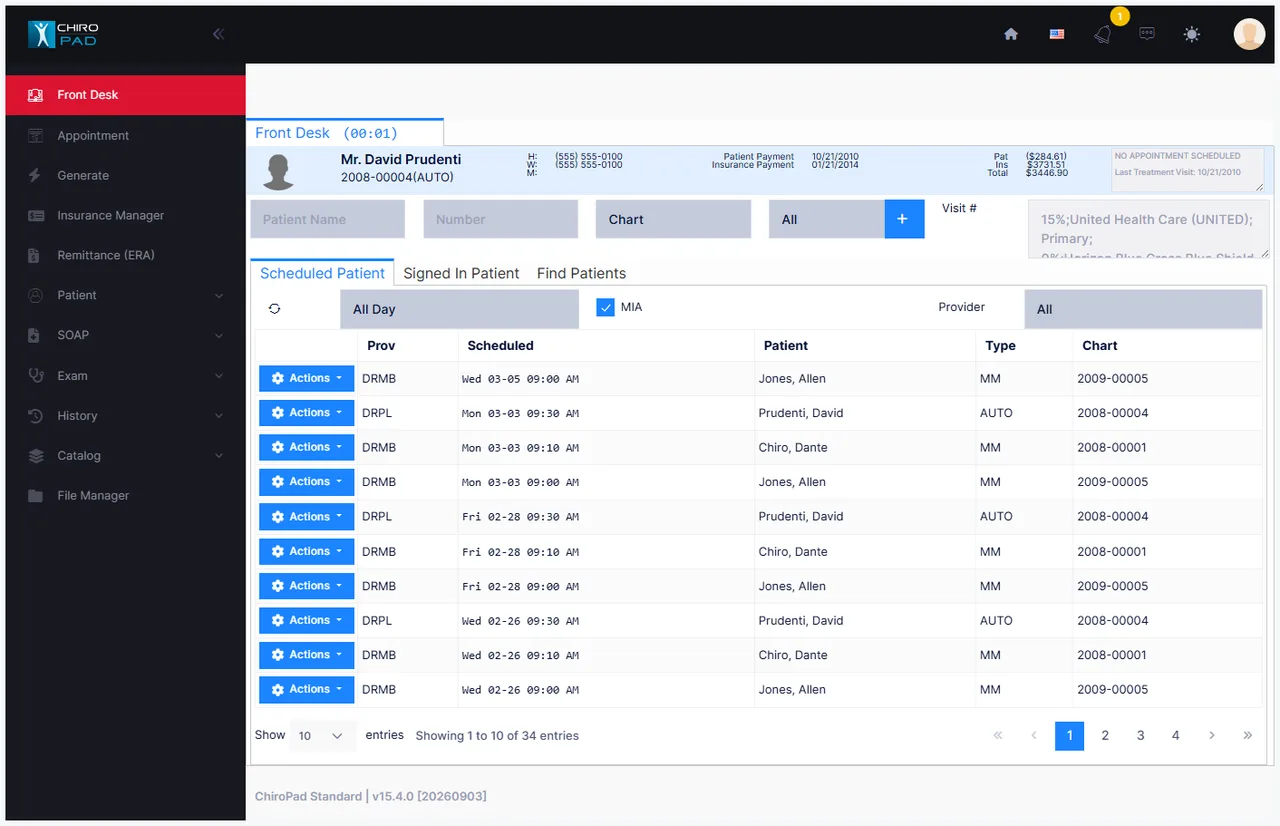
Filter by provider
Both the Scheduled Patient and Signed In Patient tabs have their own Provider filter, each applying only to the tab it sits on. The default is All.
| Practice | Suggested setting |
|---|---|
| Single provider | Leave both on All — filtering gains you nothing |
| Multiple providers | Front desk on All; each provider filtered to their own name |
Setting the two tabs differently is legitimate — a provider might want All on Scheduled (to see the shape of the day) but just their own patients on Signed In (to see who is actually waiting for them).
Limit how far ahead you look
The time list on the Scheduled Patient tab controls how much of the day is shown:
All Day · 15 min · 30 min · 45 min · 1 hour · 2 hours · 3 hours · 4 hours
A shorter window suits a busy desk that only cares about who is arriving imminently. All Day suits anyone who needs the full picture.
Refresh the list
Several people work from this screen at once, so what you are looking at can fall behind — for example when a colleague signs someone in at the front desk. Refresh pulls the current list.
Sort the columns
Click any column heading to sort by it. Click again to reverse the order.
Scheduled Patient — Prov · Scheduled · Patient · Type · Chart
| Sort by | Useful when |
|---|---|
| Prov | Multi-provider practice — groups each provider's patients together |
| Scheduled | The default: the order patients are booked through the day |
| Patient | Looking up one person by name |
| Type | Grouping by account type |
Signed In Patient — Signed In · Scheduled · Chart · Patient · Type · Provider
Sorting by Signed In (the default) gives arrival order — effectively the waiting-room queue. Sorting by Scheduled instead shows appointment order, which quickly reveals who has been waiting past their slot.
Suppress Appointment Resolution pop-ups
On the Signed In Patient tab. See Missed appointments.
These are per-user settings
Provider filter, look-ahead, MIA and pop-up suppression follow your login, not the computer. Set them once for how you work and they follow you to any machine you sign in from — and they don't disturb anyone else's screen.