
Appearance
Users and roles
Every person who uses ChiroPad has their own sign-in. What they can do with it is decided by the roles they hold, and each role is a set of permissions — one per screen or action.
One person, one sign-in
Federal rules and every state board require that each individual who touches patient records has a unique login and password. Shared logins make the practice non-compliant, and they make the audit log worthless — it can only say who did something if the login was one person's. When a staff member leaves, set their user Inactive; never hand the account to the next hire.
Users
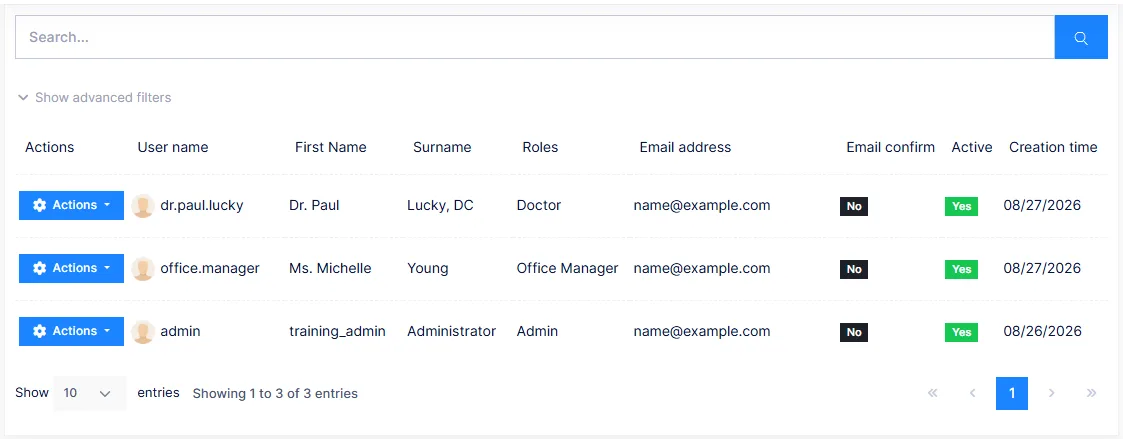
Administration → Users lists everyone: user name, first name and surname, roles, email address and whether it is confirmed, whether the account is active, and when it was created. Search by any of these; Show advanced filters adds a filter by permission and an Only locked users switch.
Creating a user
Click Create new user. The form has three tabs:
| Tab | Holds |
|---|---|
| User information | First name, surname, email, phone, user name, password (or Set random password), Should change password on next login, Active, two-factor and lockout switches, and Send activation email |
| Roles | Tick the roles this person holds — normally exactly one |
| Organization units | Optional, for practices that group staff by location |
The email address is required: it is where the activation email and password resets go. A new user is active immediately unless you untick Active.
Let people set their own password
Tick Set random password and Send activation email, and the new user receives a link to set a password only they know. It also proves their email address works before they need it for a reset.
The actions menu
Each user's Actions menu offers:
| Action | Does |
|---|---|
| Login as this user | Impersonate them, to see what they see — the audit log records that you did |
| Edit | Change any of the details above, including roles |
| Permissions | Grant or revoke individual permissions for this person on top of their roles |
| Unlock | Clear a lockout after too many failed sign-ins |
| Change profile picture | Set their avatar |
| Delete | Remove the account. Prefer setting Active off — deletion cannot be undone |
Excel operations exports the user list, or imports users from a spreadsheet for a large initial setup.
Linking a user to a provider
A provider who signs in needs both a user (here) and a provider record in the Provider catalog; the two are linked from the provider record so the notes they sign and the charges they enter carry their provider ID. Create the provider first.
Roles
Administration → Roles lists the roles and lets an Admin create more or change what each one can do.
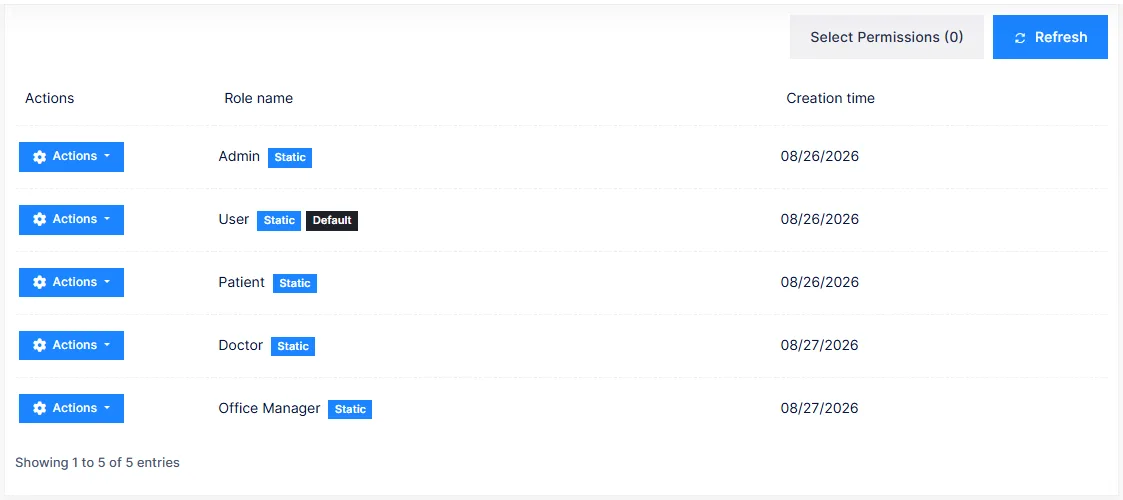
Three roles are created for every practice:
| Role | Intended for | Reaches |
|---|---|---|
| Admin | The practice owner or whoever administers the system | Everything. Any new screen is granted to Admin automatically |
| Doctor | Providers | All clinical screens, patients, catalogs, customization, reports, preferences, statements and batch print; user editing but not role editing |
| OfficeManager | Front desk and billing staff | Front Desk, appointments, patients, billing, catalogs and reports other than Financial; no clinical screens, no customization, no preferences |
Open a role's Permissions to see the full tree, grouped the way the menu is — Front Desk, Patient, SOAP, Exam, History, Catalog, Customize, Report, Administration, Preference. Tick what the role should reach; a parent permission unlocks the menu, its children unlock the screens and actions within it.
Change the role, not the person
It is tempting to give one user an extra permission from their Permissions action. Do it sparingly: the next person in that job will not get it, and nobody will remember why the first one had it. If a whole job needs a permission, add it to the role. If a job needs a different mix, create a role for it.
Organization Units
An optional tree of units — locations, departments — that users can be assigned to, with roles granted per unit. A single-location practice can ignore it entirely. Where it is used, a user inherits the roles of every unit they belong to, and the Users list shows those roles as inherited.
Login attempts
Your own recent sign-ins — successful and failed, with the address they came from — are under your profile menu as Login attempts. Admins see every user's attempts in the Audit Logs.